How to Turn On Dictation on Apple Watch (2026)
Used by recruiters, executives, consultants, and more.
How to Turn On Dictation on Apple Watch (2026)
To enable dictation on Apple Watch, dictation is on by default. Whenever a text field appears, in Messages, Mail, Notes, or a search box, tap the microphone icon on the keyboard and speak instead of typing or scribbling. In Settings on your Watch, under General, then Keyboard, you can turn on Prefer Dictation so speech becomes your default text input instead of the on-screen keyboard or Scribble. Dictation turns your voice into text on the spot. It does not record or save the audio itself, which matters if what you actually want is a saved recording rather than typed text.
You are on your wrist, hands full or moving, and you need to send a text or jot a quick note without pulling out your iPhone. Apple Watch has offered dictation for years, and watchOS 26 extended it into the new Notes app. This guide covers how to turn dictation on, where it works, and what to use instead if you want more than a short typed note.
How to Enable Dictation on Apple Watch: Quick Steps
To turn on dictation on Apple Watch, open Settings, tap General, tap Keyboard, and turn on Prefer Dictation, or simply tap the microphone icon whenever a keyboard appears.
- Open the Settings app on your Apple Watch.
- Tap General, then tap Keyboard.
- Turn on Prefer Dictation so speech becomes your default text input.
- In any app with a text field, like Messages or Notes, tap the microphone icon and speak.
- Tap Done when you finish speaking to insert the text.
How Do You Turn On Dictation on Apple Watch?
Dictation is built into watchOS and works without any setup the first time you tap a microphone icon on a keyboard. To make it your default over the on-screen keyboard or Scribble, open Settings, tap General, tap Keyboard, and turn on Prefer Dictation. After that, tapping into most text fields opens the microphone automatically instead of a keyboard.
This matters most in apps you use often on your wrist, like Messages or Reminders, where typing letter by letter on a small screen is impractical. Once Prefer Dictation is on, speaking a reply becomes the default, one tap and talk instead of hunting for a microphone button.
Where Does Dictation Work on Apple Watch?
Dictation works anywhere a text field appears, including Messages, Mail, Reminders, search boxes, and Siri prompts. watchOS 26 also added the Notes app to Apple Watch for the first time, and Apple's own guide confirms you can create a new note using Siri, dictation, or the on-screen keyboard.
The Notes app on Watch has real limits worth knowing. It cannot edit existing notes beyond checking off list items, and Apple states plainly that "certain attachments, such as tables and audio recordings, aren't visible in notes on Apple Watch." So a note you dictate stays text, but an audio attachment from elsewhere will not show up there.
Does Dictation Save an Audio Recording, or Just Text?
Just text. Dictation converts your speech into words on the screen and does not keep the audio afterward. If you want a saved recording, not just a transcript typed into a message or note, you need a recording app instead, like Apple's own Voice Memos or a third-party option.
This is the key difference people miss when searching for dictation help. Dictation is for typing short text hands-free. Recording is for keeping the actual audio, which matters for a meeting, an interview, or anything you might want to listen back to or transcribe in full later.
What Should You Use Instead If You Want a Full Recording, Not Just Dictated Text?
If you need more than a short dictated note, for example a full conversation or a longer set of thoughts, a recording app makes more sense than dictation. Voice Memos on Apple Watch records and plays back audio, and Apple confirms it works even without your iPhone nearby, syncing to your iPhone afterward.
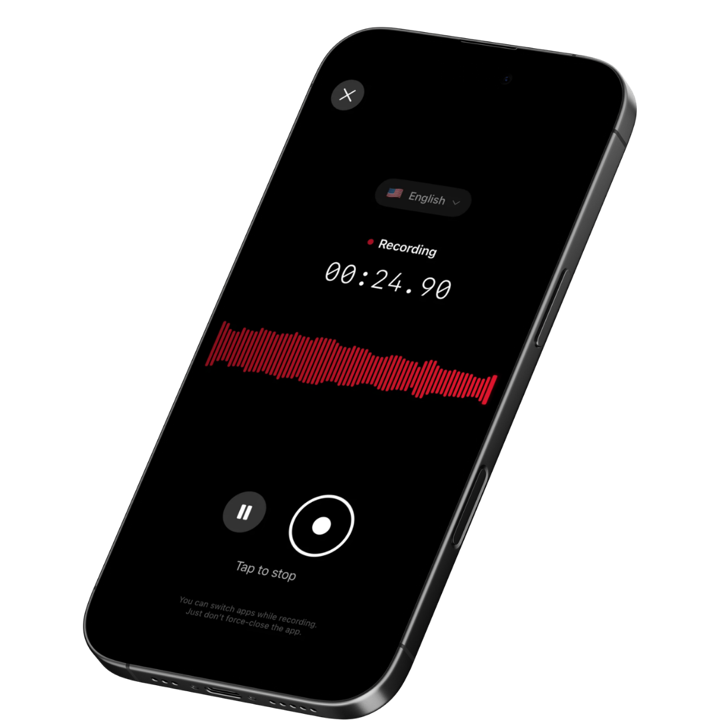
Speakwise takes this further for anyone who wants notes out of a longer recording rather than a raw audio file. Start and stop a recording from your Apple Watch with one tap, and it syncs to your iPhone, where it gets transcribed with speaker labels and turned into an AI summary with action items. That is a different job than dictation, closer to recording a whole meeting than typing a quick reminder. See our guide on getting a Watch recording onto your iPhone for how the sync itself works.
Is Dictation Accurate Enough to Rely On for Watch Recordings?
Dictation is generally accurate for short phrases in quiet settings, since it is built for quick text entry rather than long-form transcription. It struggles more with background noise, technical terms, or a full conversation with more than one speaker, the same conditions where a dedicated recording and transcription app does better.
For a single short message, dictation on Apple Watch is fine as is. For anything longer or with multiple people talking, a recording app built around transcription, like Just Press Record or Speakwise, handles the accuracy and organization better than dictation ever will.
How Watch Text Input and Recording Apps Compare
Dictation, Voice Memos, and third-party recorders solve different problems on Apple Watch. Here is how they line up.
| Feature | Speakwise | Otter.ai | Voice Memos | Just Press Record |
|---|---|---|---|---|
| Best For | AI notes from a full recording | Virtual meeting transcripts | Free basic recording | On-device transcript from your wrist |
| Apple Watch App | Yes | No Apple Watch app | Yes, built in | Yes |
| Saves Audio, Not Just Text | Yes | Not applicable, virtual only | Yes | Yes |
| Transcription | Yes, after sync, 100+ languages | Yes, for virtual meetings | Unverified for Watch-made recordings | Yes, on-device, 30+ languages |
| AI Summary | Yes, with action items | Yes | No | No |
| Offline Recording | Yes | No | Yes | Yes |
| Pricing | Free trial, then Pro subscription | Free plan, Pro from $16.99/month | Free | $6.99 one-time |
For quick text, native dictation costs nothing and needs no extra app. For a full recording you want transcribed and summarized, Speakwise adds the AI layer that plain dictation was never built to provide.
How to Get Started with Dictation and Recording on Apple Watch
-
Turn on Prefer Dictation for quick text: Go to Settings, General, Keyboard, and switch it on so speech becomes your default input for messages and notes.
-
Use Voice Memos for a free, simple recording: When you need to keep the actual audio, open Voice Memos on your Watch and tap the record button. It works without your iPhone nearby.
-
Add Speakwise if you want AI notes from longer recordings: Download it from the App Store, record a meeting or conversation from your wrist, and let it transcribe and summarize automatically once synced. If you are choosing between Speakwise and a simpler transcript-only app, see our Speakwise vs Just Press Record comparison.
-
Match the tool to the task: Dictation for a quick message, Voice Memos for a simple recording, Speakwise when you want a transcript, speaker labels, and a summary out of the recording.
Frequently Asked Questions
How do I enable dictation on my Apple Watch?
Dictation works by default whenever you tap the microphone icon on a keyboard in apps like Messages or Notes. To make it the default text input, open Settings on your Watch, tap General, tap Keyboard, and turn on Prefer Dictation. After that, most text fields open the microphone automatically instead of a keyboard.
How do I turn on dictation for the Notes app on Apple Watch?
watchOS 26 added the Notes app to Apple Watch, and you can create a new note using Siri, dictation, or the on-screen keyboard without any separate setting. Just open Notes, start a new note, and choose to speak it. Keep in mind the Watch Notes app cannot show audio attachments, only the dictated text itself.
Does Apple Watch dictation work without an iPhone nearby?
Dictation needs your Apple Watch to have its own connectivity, either Wi-Fi, cellular on a cellular model, or Bluetooth range of your iPhone, since the speech-to-text processing is not entirely on the Watch itself. Without any connection, dictation may not complete, so keep your Watch connected when you plan to dictate.
What is the difference between dictation and voice recording on Apple Watch?
Dictation converts speech into typed text and does not save the audio. Voice recording, through Voice Memos or a third-party app, keeps the actual audio file, which can then be played back or transcribed in full later. If you only need a quick message, dictation is faster. If you want a real record of a longer conversation, recording is the right tool.
Can I get AI summaries from dictated notes on Apple Watch?
Not directly. Dictation produces plain typed text with no summary, structure, or action items attached. If you want AI summaries with action items, you need a recording app built for it, like Speakwise, which records the conversation itself, then processes it into a structured summary once it syncs to your iPhone.
Final Verdict
Dictation on Apple Watch is a small, useful feature for typing quick text hands-free, and it works well for what it is built for: short messages, quick notes, and simple replies. It was never meant to replace a full audio recording, and it does not save one.
For anything longer, a meeting, a lecture, or a conversation worth keeping, a recording app is the better tool. Voice Memos covers the basics for free. Speakwise goes further for anyone who wants that recording to arrive as a transcript, speaker labels, and an AI summary instead of just an audio file sitting on your Watch.
If you want more than dictated text from your Apple Watch, download Speakwise from the App Store and record your next meeting straight from your wrist.
Get Speakwise Free
Free to download, with a free trial, on the App Store

🎯 4.9★ App Store Rating | 📱 Built for iOS
