Pricing verified: August 28, 2026 by Speakwise Team
How to Identify Speakers in a Recording (2026)
Used by recruiters, executives, consultants, and more.
How to Identify Speakers in a Recording (2026)
To identify speakers in a recording, use an app with speaker identification, also called speaker diarization, like Speakwise on iPhone. Turn it on before you record, and the app labels each voice as Speaker 1, Speaker 2, and so on. After the transcript is ready, you tap each label and type the real name. Your transcript, AI summary, and action items can then use those names. This works whether you record fresh or add labels to a recording you already have.
Think of a job interview, a team meeting, a family dinner, or a class discussion. More than one person talks, and later you need to know who said what, not just what was said. This guide covers how to identify speakers in a recording, how the tech works, and how to get more accurate labels.
How to Identify Speakers in a Recording: Quick Steps
To identify speakers in a recording, turn on speaker identification before you record, then rename each speaker label once the transcript is ready.
- Open Speakwise and tap the speaker button before you start recording.
- Choose Auto, or set the exact number of speakers from 2 to 6.
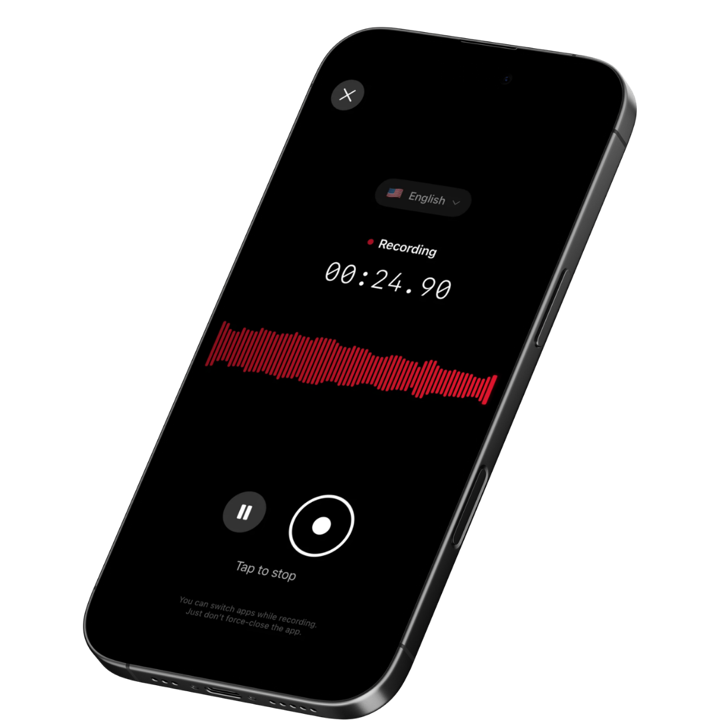
- Record your conversation or meeting as normal.
- Open the finished transcript and find the speaker labels.
- Tap each label and type the real name to replace "Speaker 1" and "Speaker 2".
What App Can Identify Speakers in a Recording?
Speakwise can. Before you record, tap the speaker button at the top of the recording screen and turn speaker identification on. Choose Auto, or set the number of speakers from 2 to 6 if you know it. The transcript then labels each voice as Speaker 1, Speaker 2, and so on. Tap any label to type the real name. The transcript then shows that name everywhere, and your AI summary and action items can use it too. Already recorded a conversation without turning it on? Open the finished recording, tap the menu, and choose "Add Speaker Identification" to add labels after the fact. You can also import an audio file or share a Voice Memos recording into Speakwise first, then add labels the same way. For a side-by-side look at how other apps handle this, see our list of the best transcription apps with speaker labels. Otter.ai and Notta can also label speakers. Apple Voice Memos cannot.
How Does an App Tell Voices Apart?
An app tells voices apart with speaker diarization, the tech that splits a recording by who is talking. It cuts the audio into small pieces, then notices what makes each voice different, like pitch and tone. Pieces that sound alike get grouped together as one speaker.
Diarization only answers "who spoke when." It does not know anyone's name. That is where speaker identification comes in: once the app has grouped the voices, you add the real names yourself. Speakwise handles both steps, splitting the voices automatically and letting you rename each one. See our roundup of the best AI note takers with speaker diarization for a closer look at how different apps handle this step.
Can You Identify Speakers in a Recording You Already Have?
Yes. Import the audio file into Speakwise using "Import Recording," in m4a, mp3, or wav format, or share a Voice Memos recording to Speakwise from the iPhone share sheet. Once it finishes transcribing, open the menu and choose "Add Speaker Identification" to add the labels.
This only works once per recording, so it is worth doing it right the first time. Voice Memos on its own cannot add speaker labels, even with the transcript feature on iOS 18 and later, so a two-person conversation stays as one block of text unless you move it into an app built for speaker identification.
How Do You Change "Speaker 1" to a Real Name?
Tap the speaker label in the transcript and type the person's real name. "Speaker 1" becomes "Maria" everywhere in the transcript. If you already made an AI summary or action items, the app offers to rewrite them with the real names. Tip: name the speakers first, then create the summary, and the names show up on their own.
If the app split one person into two separate labels by mistake, give both labels the same name. They merge into a single speaker. This is a quick fix and does not require re-recording anything.
How Can You Get More Accurate Speaker Labels?
No tool gets speaker labels 100% right every time, but a few habits make a real difference. These tips work for any app, not just Speakwise.
- Put the phone in the middle of the table, not off to one side.
- Ask people to avoid talking over each other.
- Cut background noise: close windows, turn off fans or music.
- Have each person say their name at the start of the recording.
- Set the exact number of speakers instead of leaving it on Auto.
- Try to capture at least a few seconds of each person's voice early on.
Even with these steps, some cases stay hard for every tool: people talking over each other, very short replies like "yes" or "ok," voices that sound alike, loud background noise, and speakers sitting far from the phone.
How the Best Apps Compare for Identifying Speakers
Here is how the main options stack up for identifying speakers in a recording.
| Feature | Speakwise | Otter.ai | Voice Memos | Notta |
|---|---|---|---|---|
| Best for | In-person talks on iPhone | Online meetings | Quick free recordings | Uploaded files and online meetings |
| Labels who said what | Yes | Yes | No | Yes |
| Rename speakers | Yes, tap a label | Yes, tag speakers and it learns voices | No speaker labels | Yes, edit speaker names |
| Works on audio you already have | Yes, import m4a, mp3, wav | Yes, 3 imports total on the free plan | No speaker labels | Yes, 50 uploads a month free |
| AI summary | Yes, with action items | Yes | Transcript only | Yes |
| Price | 7-day free trial ($0.00) | Free plan, Pro $8.33/month billed yearly | Free, built in | Free plan, Pro $8.17/month billed yearly |
Speakwise fits in-person conversations on iPhone best, since it records the talk in the room, labels each voice, and lets you rename speakers afterward. Otter is a strong pick if most of your talks already happen inside Zoom, Google Meet, or Teams.
How to Get Started
- Download Speakwise and start the 7-day free trial. It costs $0.00 to try. When you start, pick the plan that includes speaker identification, since it is not included in every plan.
- Turn on the speaker button before you record. Choose Auto if you are not sure how many people will talk, or set the exact number from 2 to 6.
- Record your conversation with the phone in the middle. Keeping the phone central and cutting background noise both help the labels come out cleaner.
- Open the transcript and tap each label to add real names. From there you can share the transcript or send it straight to Notion.
Frequently Asked Questions
Can my iPhone identify who is speaking in a recording?
Not on its own. The built-in Voice Memos app can show a text transcript on iOS 18 and later, but it does not label speakers, even in iOS 26. A two-person conversation comes out as one block of text with no way to tell who said what. To identify speakers, you need an app built for it, like Speakwise, which labels each voice as Speaker 1, Speaker 2, and lets you rename them.
Is there a free way to identify speakers in a recording?
Yes, with limits. Otter's Basic plan is free and includes speaker identification by name, with 300 transcription minutes a month, but each conversation is capped at 30 minutes. Notta's free plan only covers 3 minutes per conversation. Speakwise offers a 7-day free trial ($0.00). Speaker identification is not included in every Speakwise plan, so when you start your free trial, pick the plan that includes it.
What is the difference between speaker identification and speaker diarization?
Speaker diarization is the tech step: it splits an audio recording into sections and groups them by voice, answering "who spoke when" without knowing any names. Speaker identification is what happens next, when you or the app attach a real name to each voice group, like "Speaker 1" becoming "Maria." Speakwise handles the diarization automatically and lets you do the identification by tapping each label.
How many speakers can an app identify in one recording?
In Speakwise, you can choose Auto, which lets the app decide, or set the exact number of speakers from 2 to 6. Setting the real number helps stop the app from inventing extra speakers. More speakers in one conversation, along with people talking over each other, both make accurate labeling harder for any tool. For talks with several people at once, see our guide to the best app for multiple speaker transcription.
Is Otter.ai or Speakwise better for identifying speakers?
It depends on where your conversations happen. Otter.ai is a strong fit for online meetings on Zoom, Google Meet, or Teams, and it learns a voice over time so it can tag that person automatically in future meetings. Speakwise is built for in-person conversations recorded on iPhone, with easy renaming, an AI summary that can use the real names, and the ability to add speaker labels to a recording you already made. Both are honest, capable choices for different situations.
Final Verdict
Identifying speakers in a recording turns a wall of text into a real conversation you can actually use later. The step itself is simple: turn on speaker identification before you record, or add it afterward, then rename the labels once you have a transcript.
Speakwise is built for this on iPhone, whether the conversation is an interview, a team meeting, or a family catch-up happening in the same room. Otter.ai remains the better fit if most of your talking happens inside online meeting apps instead. Either way, the honest answer is that no tool gets speaker labels perfectly right every time, but a few small habits, like placing the phone in the middle of the table, go a long way.
Download Speakwise from the App Store and see who said what in your next recording.
Get Speakwise Free
Free to download, with a 7-day free trial ($0.00), on the App Store

🎯 4.9★ App Store Rating | 📱 Built for iOS
