How to Record and Transcribe a Conference Talk (2026)
TL;DR
Record and transcribe a conference talk by starting Speakwise before the session and placing the phone close to the stage. It keeps recording with the screen off and still works if the venue Wi-Fi is weak or full. After the talk, pick a summary template, name the speakers, and export a recap to share with your team.
Used by recruiters, executives, consultants, and more.
How to Record and Transcribe a Conference Talk (2026)
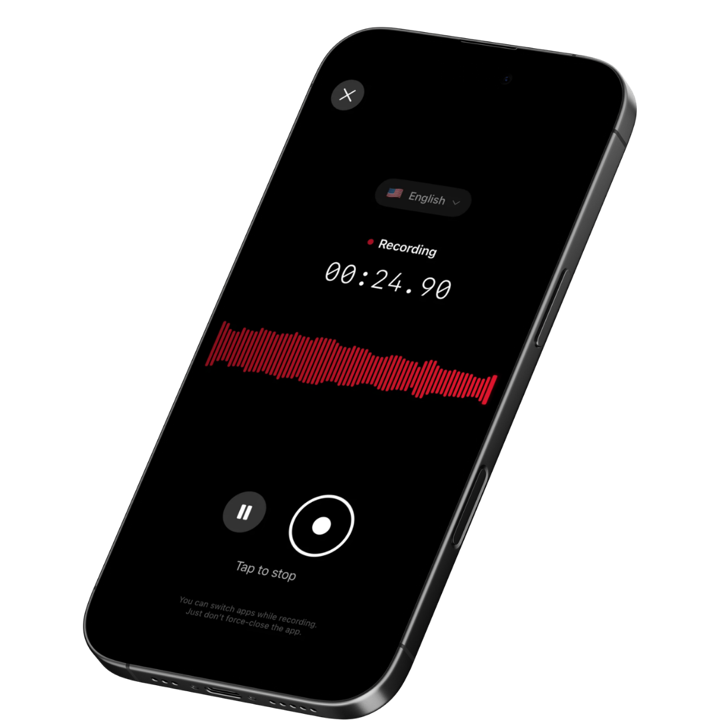
To record and transcribe a conference talk on iPhone, open Speakwise, tap record before the speaker starts, and set the phone where it can hear the stage clearly. Speakwise keeps recording with the screen off, records fully offline if the venue Wi-Fi is overloaded, and transcribes the talk in 100+ languages once you reconnect. After the session, pick a summary template, label the speakers for a panel or Q&A, and share a recap with your team by link, PDF, Word, or Notion sync. The same recording also works inside the Speakwise connector for ChatGPT and Claude, so you can ask the assistant to draft a recap or a slide outline from the talk.
Picture the last afternoon of a three-track conference. You caught a session that changed how you think about your roadmap, but you also stepped out for a call during the Q&A and missed the best part. Your team back at the office is waiting on a recap, not a raw recording file. This guide covers checking the recording policy, where to sit and point your phone, handling bad Wi-Fi and long sessions, labeling speakers on a panel, and turning the talk into a recap your team will actually read.
Record and Transcribe a Conference Talk: Quick Steps
To record and transcribe a conference talk, open Speakwise before the speaker starts, place your phone where it can hear the stage, and let it run with the screen off.
- Check the event's recording policy, or ask the speaker, before you hit record.
- Open Speakwise and start recording a minute before the talk begins.
- Set the phone face up near the stage, or connect an external microphone in a large room.
- Let the recording run with the screen off. It keeps going even if the venue Wi-Fi drops.
- After the talk, pick a summary template and name the speakers if it was a panel.
- Export the recap or share a link with your team.
Do You Need Permission to Record a Conference Talk?
Usually yes, or at least you should check first. Most conferences list their recording policy in the attendee guide or on the session page, and some sessions run under the Chatham House Rule, which lets you share what was discussed without naming who said it. If a talk has no posted policy, ask the speaker directly before the session starts. Many speakers say yes once they know the recording is for your own notes, not a public upload.
Treat sensitive sessions, like unpublished research or a roadmap the speaker asks you to keep private, with extra care, and never record over an organizer's explicit no. Once you have a yes, open Speakwise and start recording at least a minute early so you do not miss the opening line.
Where Should You Sit and Put Your Phone to Record a Talk Clearly?
Sit toward the front, slightly off to one side of a loud speaker system, and set your phone face up on a table or an empty seat, with nothing covering the microphone. A clear line to the speaker's voice matters more than being close to the stage. In a large ballroom or auditorium, the iPhone's built-in microphone can struggle once you are more than a few rows back.
For a big room, clip a small USB-C or wireless microphone near your seat, or set it on the table closer to the stage, for a cleaner signal than your phone alone can pick up. Speakwise records through AirPods, Bluetooth earbuds, or an external USB-C or wireless microphone, and it keeps recording with the screen off, so you can set the phone down and focus on the talk instead of watching it record.
What Happens If the Conference Wi-Fi Is Overloaded or the Session Runs Long?
Nothing stops your recording. Speakwise records fully offline, so a crowded ballroom with thousands of phones fighting for the same network will not interrupt it, and it transcribes the talk automatically once you are back online, whether that is on cellular in the hallway or Wi-Fi back at your hotel. For more offline-first options, see our guide to the best offline meeting recorder for conferences.
Venue Wi-Fi really does struggle at scale. The organizers of ICML 2026 capped in-person registration, citing venue logistics, the Wi-Fi infrastructure, and the limits of the space. Long sessions are covered too: Speakwise can record up to 5 hours in a single recording on the right plan, so one multi-hour workshop does not need to be split into separate files.
How Do You Get Speaker Labels and a Team-Ready Summary From a Talk?
With speaker identification, Speakwise labels each voice as Speaker 1, Speaker 2, and so on, and you can also add speaker identification to a recording you already made. This matters most in a panel discussion or an audience Q&A with several voices. After the talk, tap each label and type the real name, so "Speaker 2" becomes the panelist's actual name in the transcript and the summary.
Pick a summary template that fits the session: Lecture & study notes for a single speaker covering concepts and key facts, Meeting notes & actions if the talk turns into a working session with decisions, or Custom if you describe exactly who the recap is for. Add names, companies, and technical terms to Custom Words beforehand, so Speakwise listens for them and gets more of them right. Speaker identification is not included in every plan. When you start your free trial, pick the plan that includes it.
What Is the Best Way to Share a Conference Recap With Your Team?
Export the summary, transcript, and action items as a share link, a PDF, or a Word file, or let it sync straight to Notion so your team finds the recap where they already work. A share link opens the summary, transcript, and action items right in a browser, so a colleague who missed the talk does not need the app to read it.
Speakwise users report saving about 73% of their post-meeting follow-up time this way (Speakwise user surveys), time that used to go into writing up a talk from memory. For a faster recap, use the Speakwise connector for ChatGPT or Claude. It is read-only, so it cannot change your recording, but it lets you ask the assistant questions about your transcripts and summaries, for example to draft a one-page recap or a slide outline straight from the talk.
How the Best Recording Apps Compare for Conference Talks
Here is how four options stack up for recording and transcribing a conference talk.
| Feature | Speakwise | Otter.ai | Voice Memos | Notta |
|---|---|---|---|---|
| Best For | Recording conference talks and panels on iPhone | Live transcription during online meetings | Free basic recording, no summary | Uploaded recordings and multilingual transcripts |
| Records In Person | Yes, one tap, or hands-free from the Action Button or Control Center | Yes, via its mobile app | Yes | Yes, via its mobile app |
| Offline Recording | Yes, records offline and transcribes when back online | Yes, records offline. Only its meeting bot and live transcription need a connection | Yes | Not stated by Notta |
| Speaker Identification | Yes, labels speakers and lets you rename them | Yes, labels speakers and learns voices over time | No | Yes, edit speaker names |
| Max Recording Length | Up to 5 hours per recording, plan-dependent | 30 minutes per conversation free, 90 minutes on Pro | No published limit | 3 minutes per conversation free, up to 5 hours per recording on paid plans |
| AI Summaries | Yes, with templates matched to the type of session | Yes | No | Yes |
| Transcription Accuracy | 95%+ in optimal audio conditions, 92%+ in noisy rooms | Not published | Not published | Not published |
| Languages | 100+ with automatic detection | 6, one at a time (English, Spanish, French, German, Japanese, Simplified Chinese; German and Chinese in beta) | English and a few others, iPhone 12 or later | 58 |
| Export & Sharing | Share link, PDF, Word, Notion sync | PDF, plain text export | Share the audio file or plain transcript | Share link, DOCX, PDF, TXT, SRT |
| Pricing | 7 days free, then $69.99/yr (about $5.83/mo) | Free plan, Pro from $8.33/month billed annually ($16.99 monthly) | Free, built into iPhone | Free plan, Pro $8.17/month billed annually ($97.99/year) |
For conference attendees who need a team-ready recap, Speakwise stands out because it keeps recording through bad venue Wi-Fi, covers sessions up to 5 hours on the right plan, and turns speaker labels and a summary template into a recap your team can read in minutes. For a deeper look at other options, see our guide to the best app for recording conference talks.
How to Get Started Recording Conference Talks
- Check the policy, then set up before the conference: Confirm the event's recording policy, or ask the organizer, before the first session. Download Speakwise from the App Store and add names, companies, and jargon you expect to hear to Custom Words. Try Speakwise free for 7 days ($0.00). After that, it starts at $69.99 per year, which is about $5.83 a month, billed yearly. Prices shown are for the US and can differ by country.
- Start recording a minute early and aim the phone at the stage: Open Speakwise before the speaker takes the stage, and place your phone where it has a clear line to the speaker, or connect an external microphone in a large hall.
- Let it run with the screen off, even if the Wi-Fi is bad: Speakwise keeps recording with the screen off and records fully offline, so a crowded venue network will not interrupt the session.
- Pick a summary template and name the speakers: Choose Lecture & study notes, Meeting notes & actions, or Custom, and rename any speaker labels from a panel or Q&A.
- Share the recap with your team: Export to PDF or Word, sync to Notion, or send a share link. If you also catch up with people between sessions, our guide to recording networking chats at conferences covers that side of the event too.
Frequently Asked Questions
How do you record and transcribe a conference talk on iPhone?
Open Speakwise before the speaker starts and tap record, then set your phone where it can hear the stage clearly, or connect a small USB-C or wireless microphone in a large room. Speakwise keeps recording with the screen off and records fully offline if the venue Wi-Fi is weak or overloaded. Once you are back online, it transcribes the talk in 100+ languages with automatic detection. After the session, pick a summary template, rename any speaker labels, and export or share the recap with your team.
Is it allowed to record a conference talk?
Check first. Most conferences list their recording policy in the attendee guide, on the session page, or at the start of the talk itself, and some sessions run under the Chatham House Rule, which lets you share what was discussed without naming who said it. If you see no policy, ask the speaker directly before you start, since many are happy to say yes once they know the recording is for your own notes. Skip recording any session the organizer marks off-limits, and treat sensitive material, like unpublished research, with extra care even when recording is allowed.
What is the best app to record and transcribe conference sessions?
Speakwise is built for this: one tap to record on iPhone, offline recording that catches up once you reconnect, speaker labels for panels, and a summary template built for the type of session. Start with a 7-day free trial and pick the plan that includes speaker identification if you need it for panels and Q&A. Our roundup of the best app for recording conference sessions compares more tools side by side.
Can you record a conference talk without Wi-Fi?
Yes. Speakwise records fully offline, so a crowded venue network that cannot handle thousands of connected phones will not interrupt your recording. The audio transcribes automatically once your phone reconnects, whether that is on cellular in the hallway or Wi-Fi back at your hotel. This matters at large conferences: the organizers of ICML 2026 capped in-person registration, citing venue logistics, the Wi-Fi infrastructure, and the limits of the space.
Is Otter.ai or Speakwise better for recording a conference talk?
It depends on the setup. Otter.ai is built around live transcription and virtual meetings, and its mobile app can also record in person, with a free plan capped at 30 minutes per conversation and 90 minutes on its Pro plan. Speakwise is built for in-person talks on iPhone, with up to 5 hours in a single recording on the right plan, speaker labels for panels, and summary templates matched to the type of session. For one long keynote or a packed day of sessions, Speakwise's longer recording window and offline-first design fit better.
Final Verdict
Recording a conference talk is the easy part. The real problem is turning hours of sessions into something your team will actually read before the next one starts. Checking the policy, setting up your phone or microphone correctly, and keeping the recording running through bad Wi-Fi all matter, but they only pay off if what comes out afterward is a clean recap, not a raw file nobody opens.
Speakwise handles that whole path on iPhone: one tap to start, offline recording that catches up once you reconnect, speaker labels for panels and Q&A, and a summary template built for the kind of session you just sat through.
Whatever you use, plan for bad Wi-Fi and long sessions before the first keynote starts, not during it.
Download Speakwise from the App Store and turn your next conference talk into a transcript and recap your team can actually use.
Start Your 7-Day Free Trial
7-day free trial on the App Store

🎯 4.9★ App Store Rating | 📱 Built for iOS
